
You can tell in 20 minutes whether a Google Business Profile is pulling its weight, with the phone in your hand and no software. The first look belongs to a potential client searching your business name; the Performance screen comes second, read the way I read mine.
Search your business name on your phone
That potential client sees the card first: the box beside the map with your name, address, and hours. So I’d be that visitor for a minute. Open Google on your phone and type the business name the way a customer would spell it.
Read those three lines slowly, since a customer acts on them: they drive to the address and show up during the hours.
Google names a quieter cost too: if business information isn’t accurate, the profile might not show up for relevant searches in your area (Google).
If a line is wrong, write it on a note. That’s the first item on your fix list, and it took two minutes to find.
If no card appears, the 20 minutes stops here: that’s a setup or verification job, and I’ve walked through both in separate posts.
With the three lines right, the next look is below the name: the photos and the reviews.
Look at the photos, the reviews, and your replies
The photos are a passerby’s first picture of the place or the work. Both owners and customers can upload photos to a profile (Google), so what shows up first can be someone else’s angle from a while back.
Google says photos and videos show customers what a business offers (Google). Does the newest photo look like the business today?
In the reviews, look for new ones still coming in and a reply from you under each. More reviews and positive ratings can help a business’s local ranking, and Google says replies to reviews show you value customer feedback & can help the business stand out (Google).
An unanswered review is the easiest find of the 20 minutes, and a short, kind thank-you clears it today. If the reviews have gone quiet, I’d restart them with the text-after-the-job habit in how I ask for more Google reviews.
While you’re there, notice what the reviews say people came for. That wording tests your category next.
Check that your category matches what people search
That same work is what potential clients type into Google. Google describes relevance as how well a profile matches what someone is searching for (Google), and the primary category is the plainest thing your card says about what you do.
Read the category on your card next to three recent reviews. If customers keep writing “water heater replacement” and the card says general contractor, the two are talking past each other, which by Google’s definition makes a weaker match.
Glance at the services under it too. Service businesses can choose from suggested services based on their category (Google), so suggestions for work you don’t do are a sign the category needs another look. Add it to the note if it’s off.
A visitor’s view can’t tell you whether people are finding the profile at all. That lives on the Performance screen in your dashboard.
Read the Performance screen in your dashboard
That screen fills in only for verified profiles (Google). On my own profile I open it from the dashboard and set the date range to the last full month, since Google lets you set a range or pick a time period (Google).
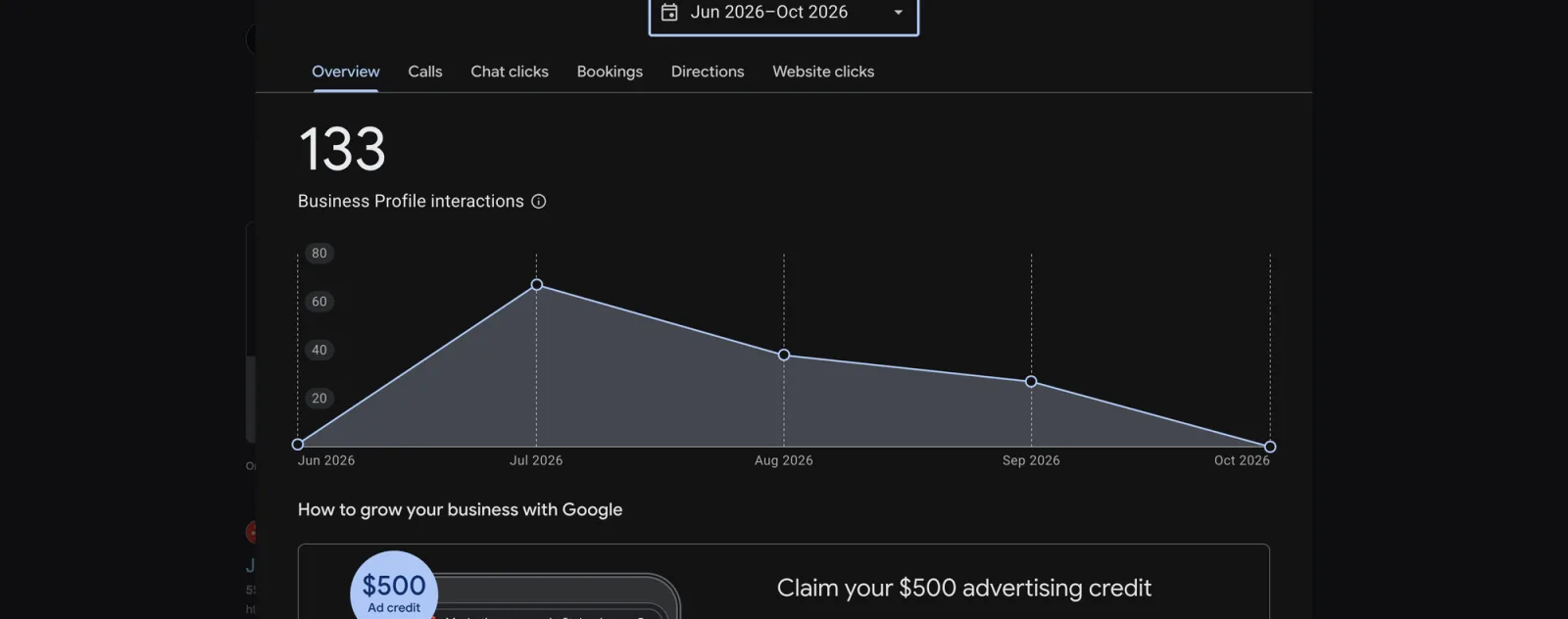
The Performance overview for my own profile, June to October: 133 interactions, peaking in July and easing through September. Screenshot: Jamison Software Solutions.
The first number is Views: how many people viewed the profile on Search and Maps, with each person counted once a day (Google).
Below it, Searches lists the words people used to find the business, and Google updates that list at the start of each month, with up to 5 days before it shows up (Google). If those words name your work, the category is matching.
Then the actions. Calls counts taps on the call button, Website clicks counts taps on your website link, and Directions counts people asking for directions to the business (Google).
The step I’d take today: write down four numbers (views, calls, website clicks, directions) with the month beside them. One month alone says little; next month’s four, beside these, turn “is it working” from a guess into a comparison.
What to fix first, and what to check each month
From your note, I’d start with what a customer acts on: a wrong address or wrong hours, then any review still waiting on a reply. Both take minutes and belong to a complete profile. Google found customers are 70% more likely to visit businesses with a complete Business Profile (Google).
The category comes next, and next month’s Searches list will show whether the change helped.
If your note runs longer than that, the checklist I use for a finished profile walks through the rest field by field.
Then put the same 20 minutes on the calendar once a month: search your name, scroll the photos and reviews, glance at the category, write down the four numbers. A stale photo or a quiet stretch of reviews gets caught at the next look instead of months later.
Keeping the card fresh between those looks (posts, new photos, answering questions) is the next post on this blog. If you’d like the monthly check on paper, the kit’s Track B is a one-page scorecard built for it.
I hope this helps.